Your #Opinion matters and helps us improve! #hexology welcomes your feedback and suggestions #tip you can add a comment or post to this source; or send an email via this link https://about.hexology.co/contact
In Source: Guest Book

Live in the App Stores
Your #Opinion matters and helps us improve! #hexology welcomes your feedback and suggestions #tip you can add a comment or post to this source; or send an email via this link https://about.hexology.co/contact
In Source: Guest Book
Welcome to #hexology. To help you get started we created this post. #tip a post is a multimedia message that lives in a source.
In Source: Hello
13 Reactions
Post > A #Post is a multimedia message composed from text, keywords and an image. To publish your post add it to a source: #tip I posted a review of a book I was reading in the barcode printed on the cover. #AddPost
In Source: Hexology Bootcamp
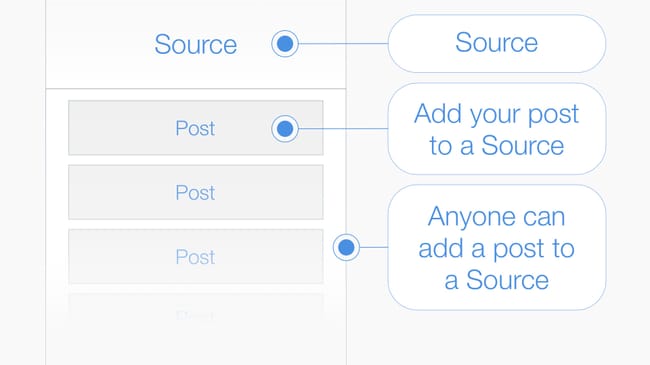
Source > A #source is the point of origin where posts are stored, anyone can add a post to a source. #hexology uses multiple source types, enabling you to add your post to a #Barcode #QRCode #GPSLocation or #hexBeacon #tip I posted a photograph in the #GPSLocation where it was shot.
In Source: Hexology Bootcamp
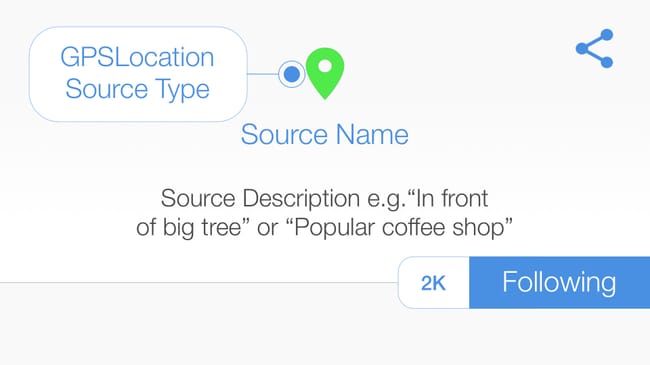
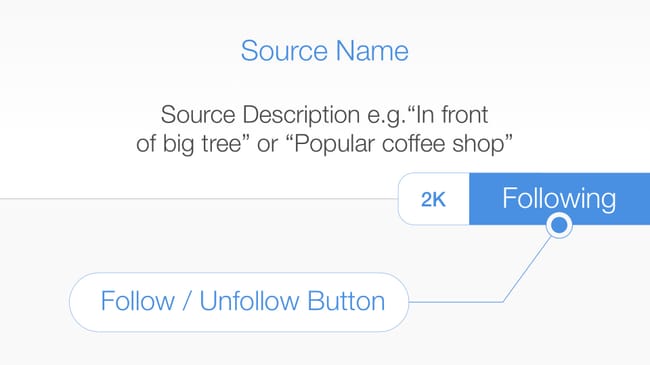
Following a Source > When you open a #Source you start to #follow it and all of the posts inside the source appear in your feed. When a new post is added to a source you follow, it appears in your feed. #tip You can unfollow a source, but unless you can scan the #QRCode #Barcode or go to the #GPSLocation and re-open it, you may not be able to recover the content. #FollowSource
In Source: Hexology Bootcamp
About Collections > A #collection is a place where you curate posts. Headed with a banner image and a description, you are the only person that has permission to add a post to a collection you created. #tip I created a collection to advertise my business, and inserted a post from a #QRCode #Source that I printed on a poster.
In Source: Hexology Bootcamp
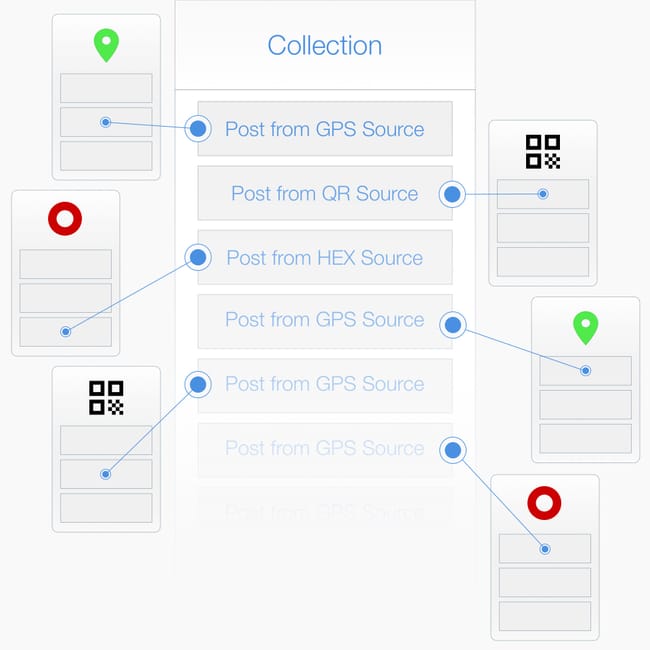
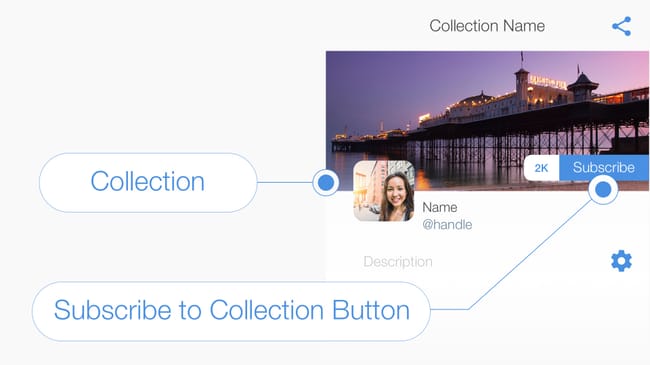
Subscribe to a Collection > Ask people to #subscribe to your #collection so that they receive a #notification when ever you add a new post. #tip The Keynote Speaker in the Seminar Room is about to begin, subscribe to this collection to stay up to date. #SubscribeToCollection
In Source: Hexology Bootcamp
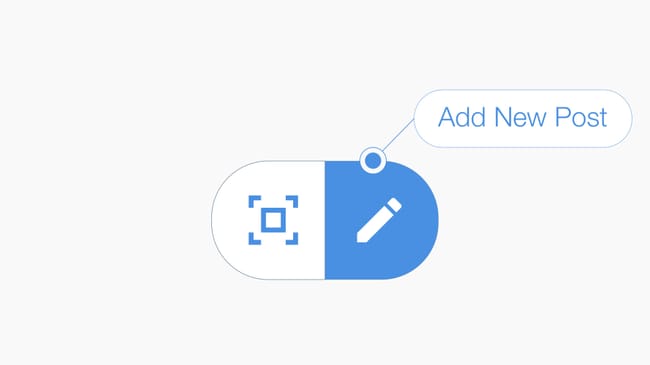
Add Post to a #GPSLocation > Press the compose icon located at the bottom of your feed to create a #post and publish it into a #GPSLocation. #tip Compose your message, then select either (1) "add post to your current location" to create a new #Source, or (2) a nearby source to add your post to an existing source. #AddPost
In Source: Hexology Bootcamp
1 Reaction
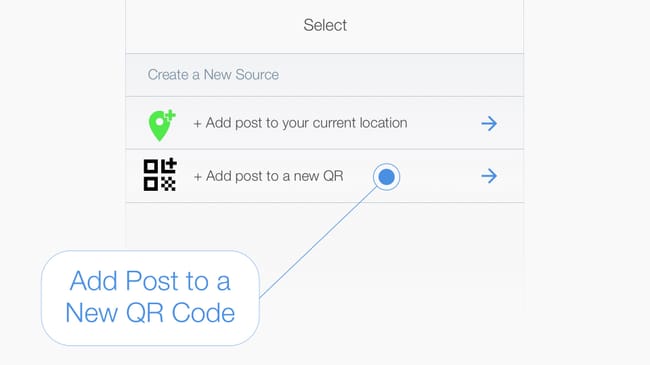
Add Post to an auto-generated #QRCode > #tip First compose your message, pressing the compose icon at the bottom of your feed, then select the "Add post to new QR" option in the select source page. #AddPost
In Source: Hexology Bootcamp
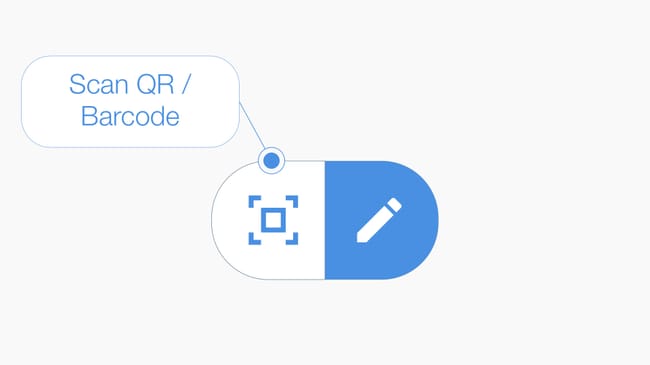
Add Post to a #Barcode > Press the #scan icon located at the bottom of your feed to launch the camera, then scan the barcode to open or create a Source. #tip If you are the first person to scan the barcode then name the source and add a description. If a Source has already been created then add your post to the existing source. #AddPost
In Source: Hexology Bootcamp
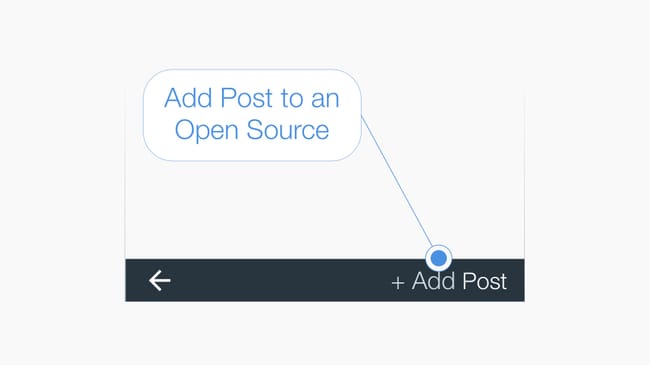
Add #Post to an Open Source > #tip At the bottom of the source page is the "+Add Post" button, press to add a post to the source you have opened. #AddPost
In Source: Hexology Bootcamp
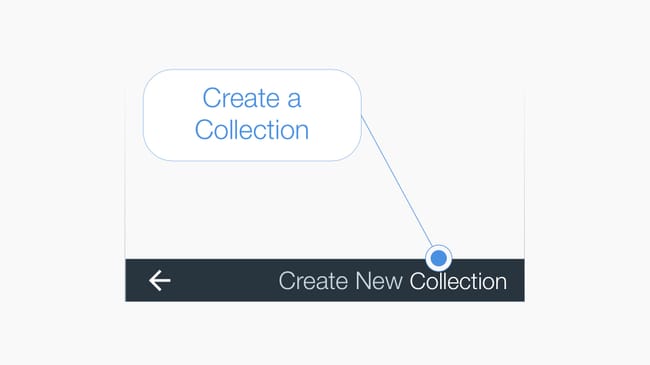
Create a #Collection > #tip Press the Collection List icon in the top right-hand corner of your feed to view a list of your collections. Then press the text "Create New Collection" in the bottom right hand corner of the page to initiate the create collection workflow. #CreateCollection
In Source: Hexology Bootcamp
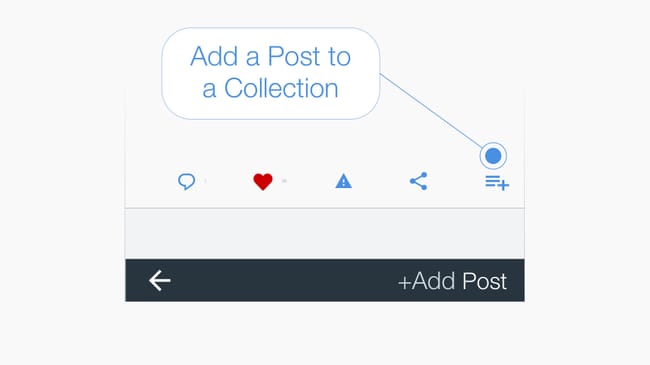
Add a post to a #Collection > Below every post is a menu bar and the icon on the far right adds the #post to a collection when pressed. #tip You can add a post created by anyone and from any source to your own collection. #CreateCollection
In Source: Hexology Bootcamp
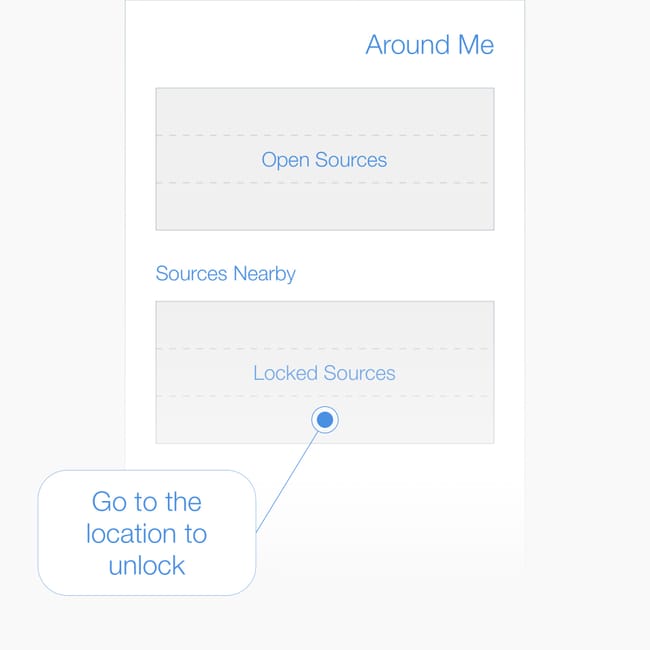
Around Me > A list of all #GPSLocation and #hexBeacons around you are listed in the Around Me Page. #tip Press the text "Around Me" located at the bottom of the feed to see the list. Split into two parts, the top part includes open sources, and the bottom part includes locked sources that are nearby #AroundMe
In Source: Hexology Bootcamp
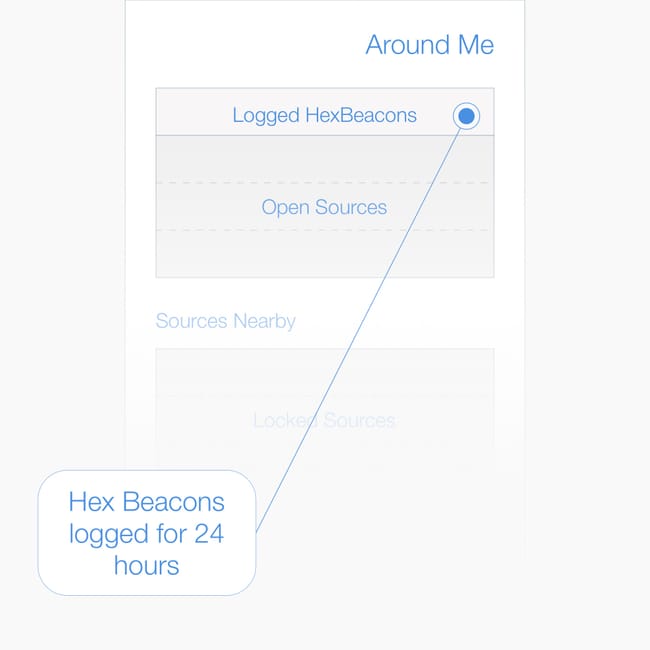
Logged #hex Beacons in Around Me > When you are near a #hexBeacon it is automatically opened and logged in the #AroundMe page for 24 hours. #tip Open a #hexBeacon and follow the source or subscribe to the collection within 24 hours to prevent if from being removed from the log.
In Source: Hexology Bootcamp
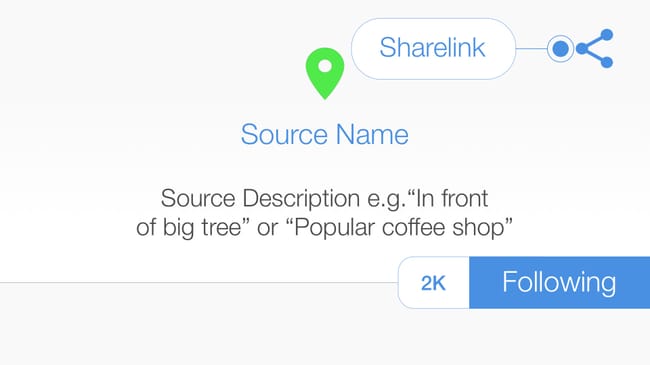
Sharing links > Share a #Post, a #Source or a #Collection with other people by sending them a #sharelink. #tip To send a #sharelink press the share icon.
In Source: Hexology Bootcamp
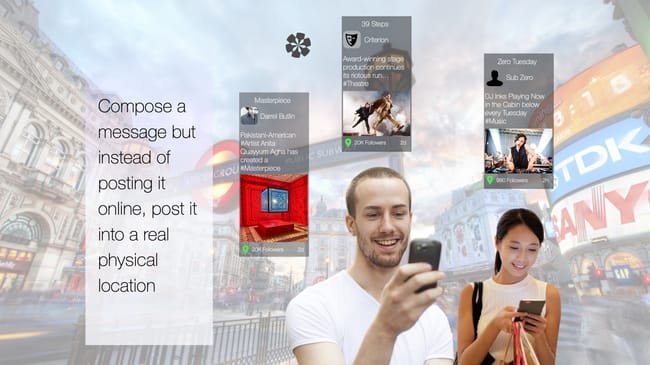
#tip Hexology empowers you to create, discover and post your digital media into the world around you, for people to discover as they walk the Earth.
In Source: Hello
2 Reactions
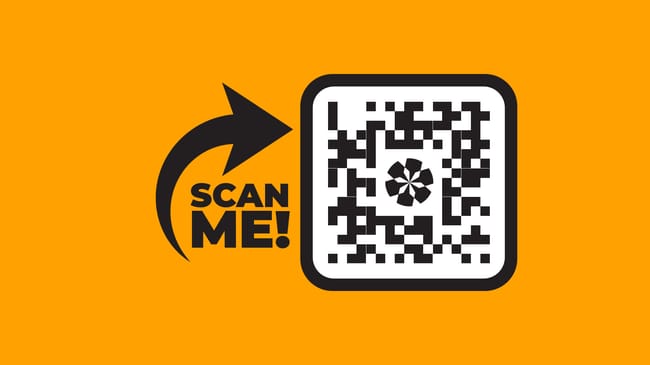
Scan QR Codes using the built-in #QRCodeScanner to open up content inside the app. #tip If you are new to #hexology and have just installed the App after scanning a #QRCode and re-directed to the App Store, scan that QR Code again!
In Source: Hello
1 Reaction
#tip Top 3 things to remember! (1) A #Post is a multimedia message that lives in a Source. (2) A #Source is a location, just like the origin of a river, a source is the place from which all content flows: such as a #GPSLocation, a #QRCode or a #Barcode on a book. (3) Add a post to a source to place your content into the world.
In Source: Hello

1 Reaction
Add your post to any source you discover, or start a new source about anything you want. #tip To create a new source press the #AddPost button at the bottom of your feed. You can create a new source in (1) your current #GPSLocation or (2) in a #QRCode which you can display. To give your new source context & purpose, give it a name and a short description.
In Source: Hello
1 Reaction
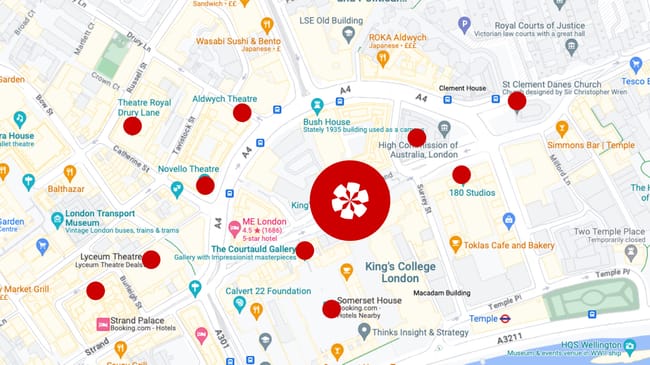
Post a #Photograph into the location where it was shot. #Share a memory & mark the spot. One of the 1st posts created was a #Poem that was posted into the location of the 9/11 #Memorial in #NewYork. #tip If we all post messages into the world, future generations will inherit a #Crowdsource #Public #Archive that looks back in time to see #Fashion #People & #Society change.
In Source: Hello

1 Reaction
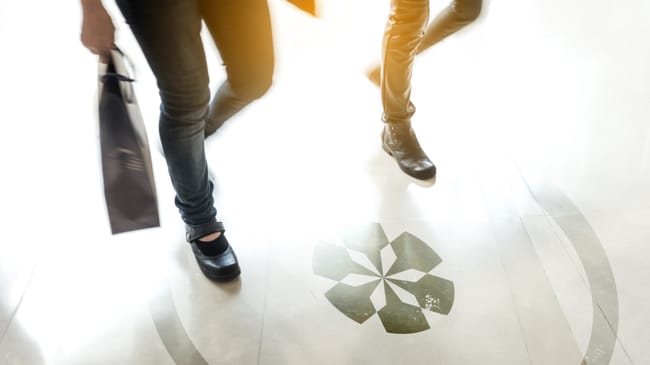
Use Hexology to: Enrich the visitor experience. Posting content into location empowers you to #Promote yourself, your #Business, your #Hobby or your interests, and to reach out & #connect with people around you. #tip Enhance your #Venue #Theatre #Restaurant #Cafe #Club or place of #Work with digital narratives that bring your location to life.
In Source: Hello
1 Reaction
Explore #hexology, where digital media is floating in the world around you. Discover this content in the ‘Around Me’ page, or by opening a #Keyword #Collection such as #Art #Architecture #London or even #StMaryLeStrand. #tip To begin press the back arrow in the bottom left hand corner to open your personal feed.
In Source: Hello

1 Reaction
It’s #social - but not online. Post your digital media into objects, space and places. #tip To understand the basics so you can use #hexology to its full potential check out our collection:
In Source: About Hexology
1 Reaction
The first principle of #hexology is #tip anyone can add a post to a source. #tip Read our app guide for an introduction to #hexology
In Source: About Hexology
1 Reaction
Share #ideas to light up the many different ways to use #hexology .. Post your idea into this source #tip or check our collection below for inspiration #crowdsource
In Source: About Hexology

No ads · No cookies · No tracking · Privacy