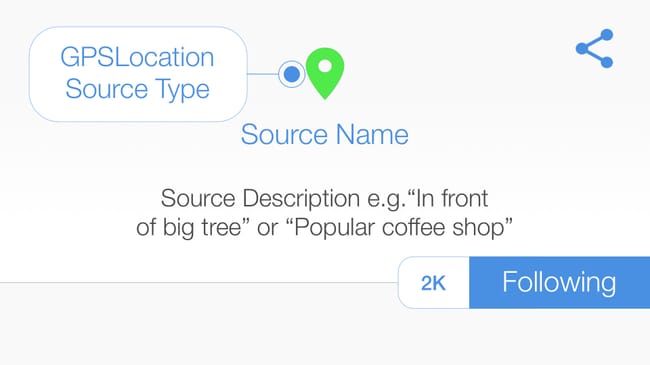
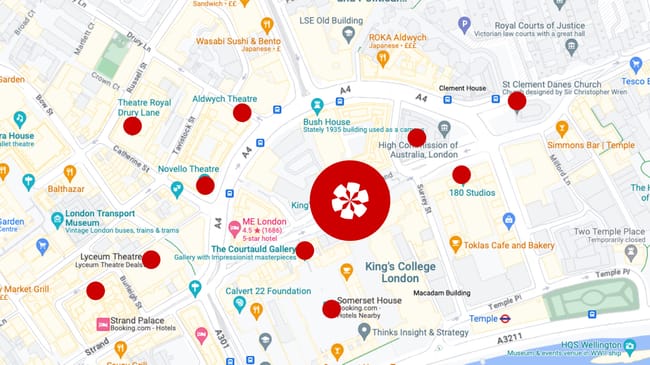
Source > A #source is the point of origin where posts are stored, anyone can add a post to a source. #hexology uses multiple source types, enabling you to add your post to a #Barcode#QRCode#GPSLocation or #hexBeacon#tip I posted a photograph in the #GPSLocation where it was shot.
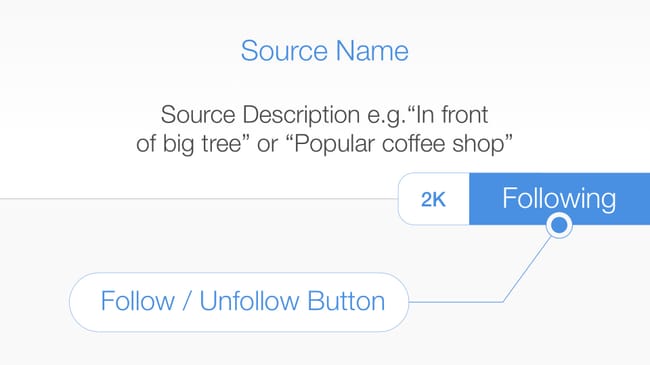
Following a Source > When you open a #Source you start to #follow it and all of the posts inside the source appear in your feed. When a new post is added to a source you follow, it appears in your feed. #tip You can unfollow a source, but unless you can scan the #QRCode#Barcode or go to the #GPSLocation and re-open it, you may not be able to recover the content. #FollowSource
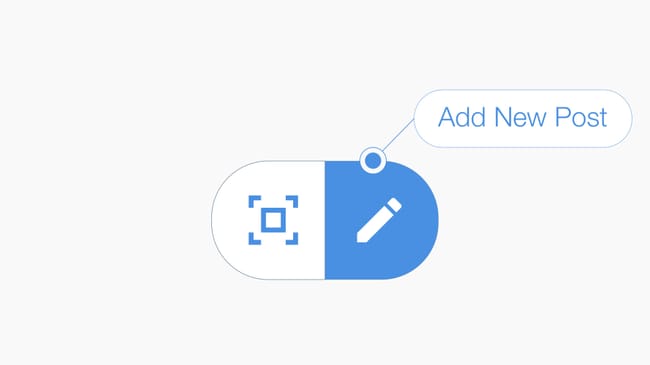
Add Post to a #GPSLocation > Press the compose icon located at the bottom of your feed to create a #post and publish it into a #GPSLocation. #tip Compose your message, then select either (1) "add post to your current location" to create a new #Source, or (2) a nearby source to add your post to an existing source. #AddPost
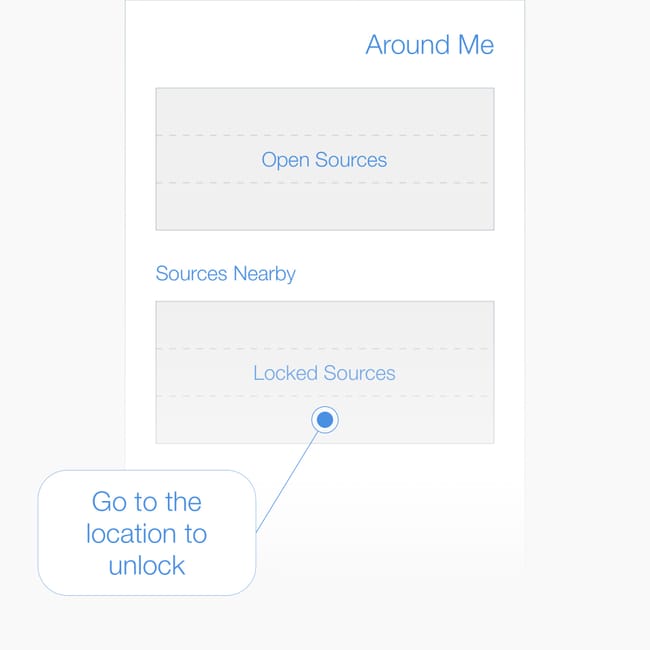
Around Me > A list of all #GPSLocation and #hexBeacons around you are listed in the Around Me Page. #tip Press the text "Around Me" located at the bottom of the feed to see the list. Split into two parts, the top part includes open sources, and the bottom part includes locked sources that are nearby #AroundMe
#tip Top 3 things to remember!
(1) A #Post is a multimedia message that lives in a Source. (2) A #Source is a location, just like the origin of a river, a source is the place from which all content flows: such as a #GPSLocation, a #QRCode or a #Barcode on a book. (3) Add a post to a source to place your content into the world.
Add your post to any source you discover, or start a new source about anything you want. #tip To create a new source press the #AddPost button at the bottom of your feed. You can create a new source in (1) your current #GPSLocation or (2) in a #QRCode which you can display. To give your new source context & purpose, give it a name and a short description.